

- Home >
- Log in to My WI

Login to My WI

How to reset your password
You'll need to reset your password the first time you log in to My WI or VIA. To do this, please follow the instructions below:
- Firstly, click the Login with SSO button on the main My WI page

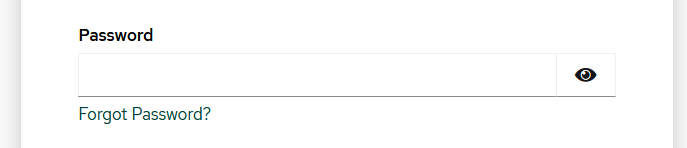
- Next, click the Forgot Password? link
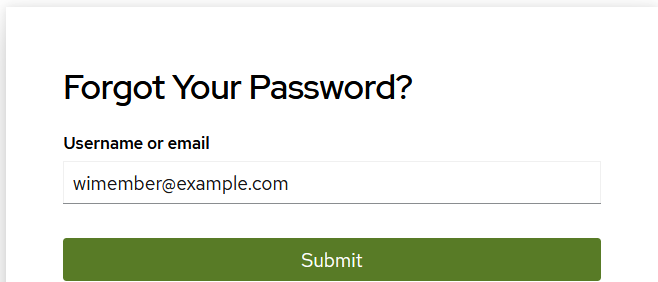
- Next, enter your email address and click Submit
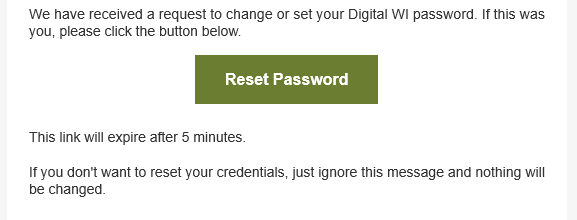
- Within a few seconds, an email should arrive in your inbox, with a link to Reset Password. Click on the Reset Password link.
- Enter your new password, and then enter it again to confirm it. Toggle password visiblity using the eye icons if it's helpful, and then press Submit.

- Finally, navigate back to https://mywi.thewi.org.uk and click the Login with SSO button again. This time, sign in with your email address and your newly created password.
FAQs
Why are you making these changes?
We appreciate it's an inconvenience to have to change your password, but we hope it will improve security, and offer an easier experience going forward.
This change is required for a few reasons:
1) We want to improve account security, and ensure we're keeping up-to-date with modern methods of keeping password secure
2) We've upgraded our website behind the scenes. You might not see any immediate changes, but a lot has been going on behind the scenes. To work with the latest version of the software, we needed a more modern method of user authentication
3) It's getting us ready for the launch of VIA, the new E-Learning platform. We will share more on this soon.
How do I reset my password?
Please follow the instructions at the top of the page.
How do I change my email address?
Your MCS Rep can update your email address for you, alternatively click on the Help? button at the bottom of the page and reach out to us, and a member of the NFWI Team will be able to help you.